
RCS User Guide
Tips:
1. Currently, it is not available to use RCS for remote connection below windows 10.
2. Please refer to the FAQ to install the Microsoft Authenticator app (Android users must download the Intune Company Portal separately) and register/verify for MFA authentication.
Step 1. Please connect to RCS VPN:
1.1. Download and install connection VPN program (GlobalProtect). Download
Note: After download is finished, please manually execute to install RCS VPN; if message show untrusted in Windows 10.11, please ignore and permit execution.
1.2. Click to open GlobalProtect from bottom right task bar
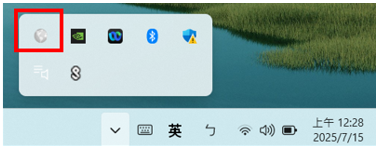
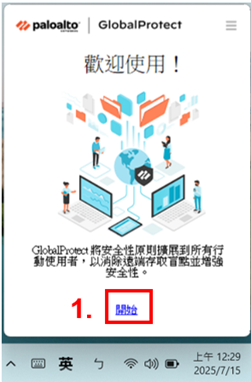
1.3. Please press Start for first time use -> Enter the URL on the portal HQ RCS portal is "rcsgp.auo.com" ; CN RCS portal is "rcsgp.auo.com.cn" ->「Connect」
1.3. AMSC Please press Start for first time use -> Enter the URL on the portal HQ RCS portal is "rcsgp.auomsc.com" ; CN RCS portal is "rcsgp.auomsc.com.cn" ->「Connect」
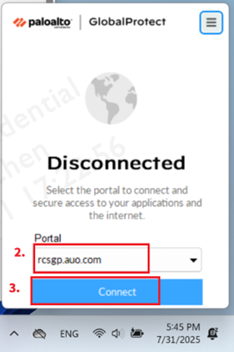
1.4. Microsoft authentication window pops up -> Enter your email account -> Next -> Enter your NT password -> Login -> MFA verification
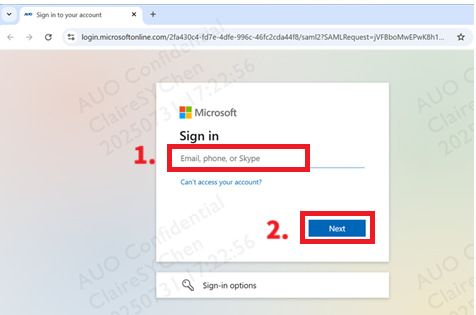
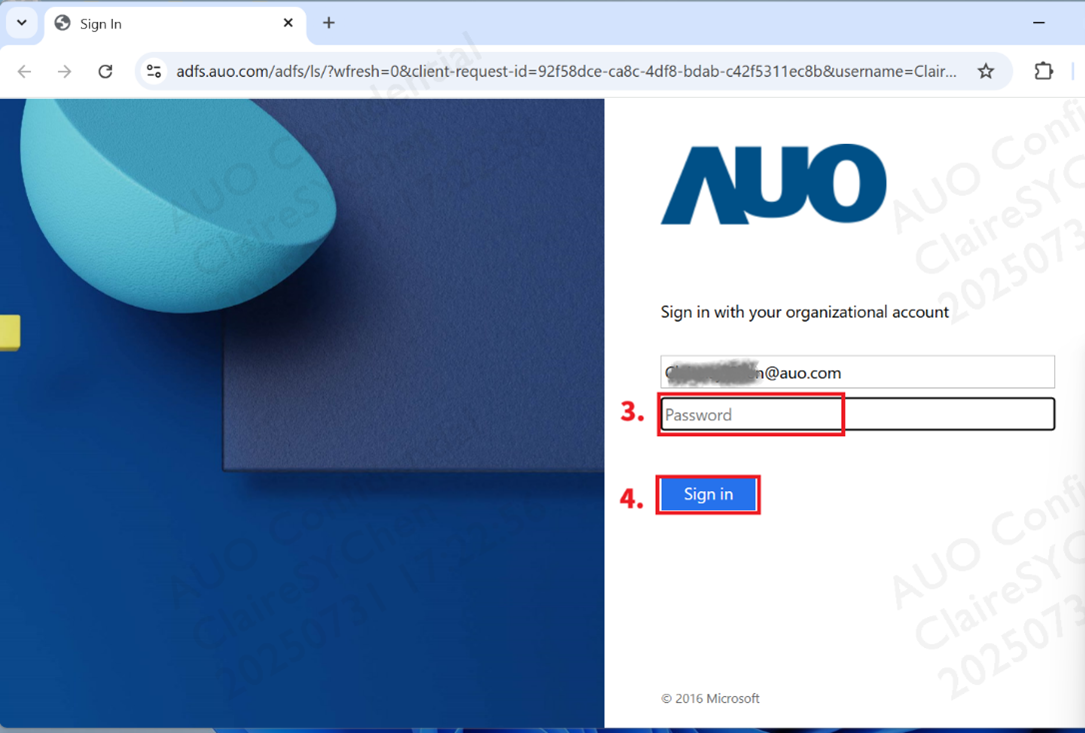
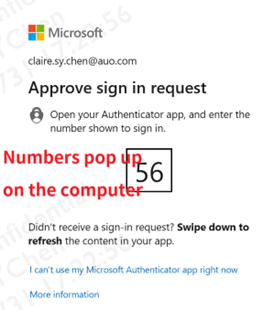
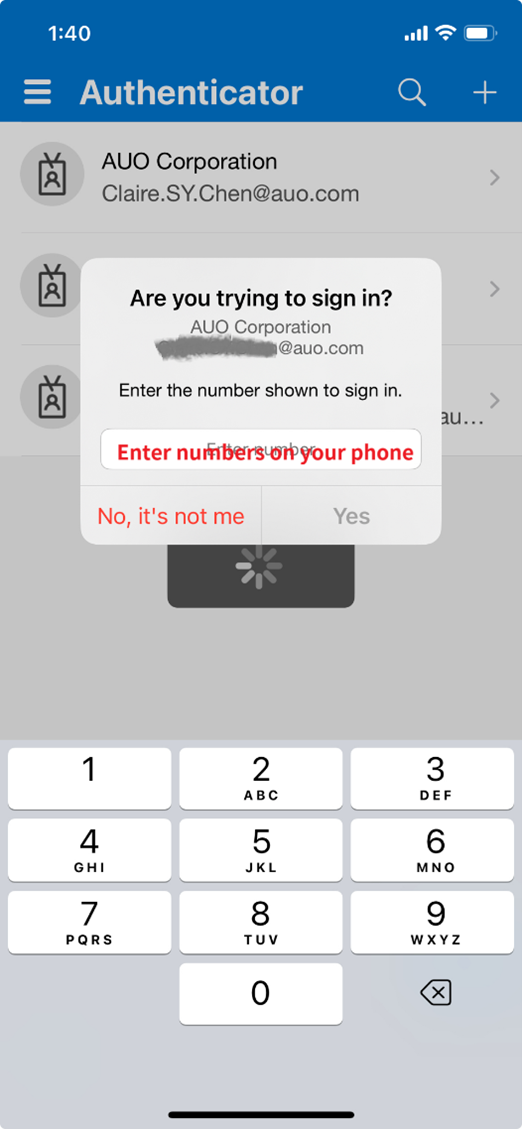
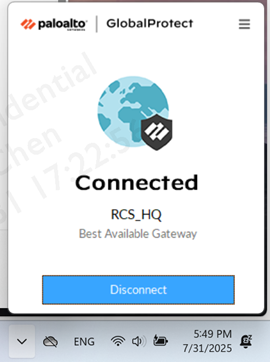
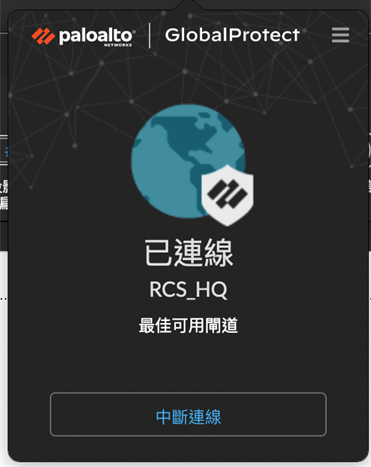
1.5. Authentication is successful -> allowing "Open GlobalProtect" -> after connection is successful client showing "Connected".

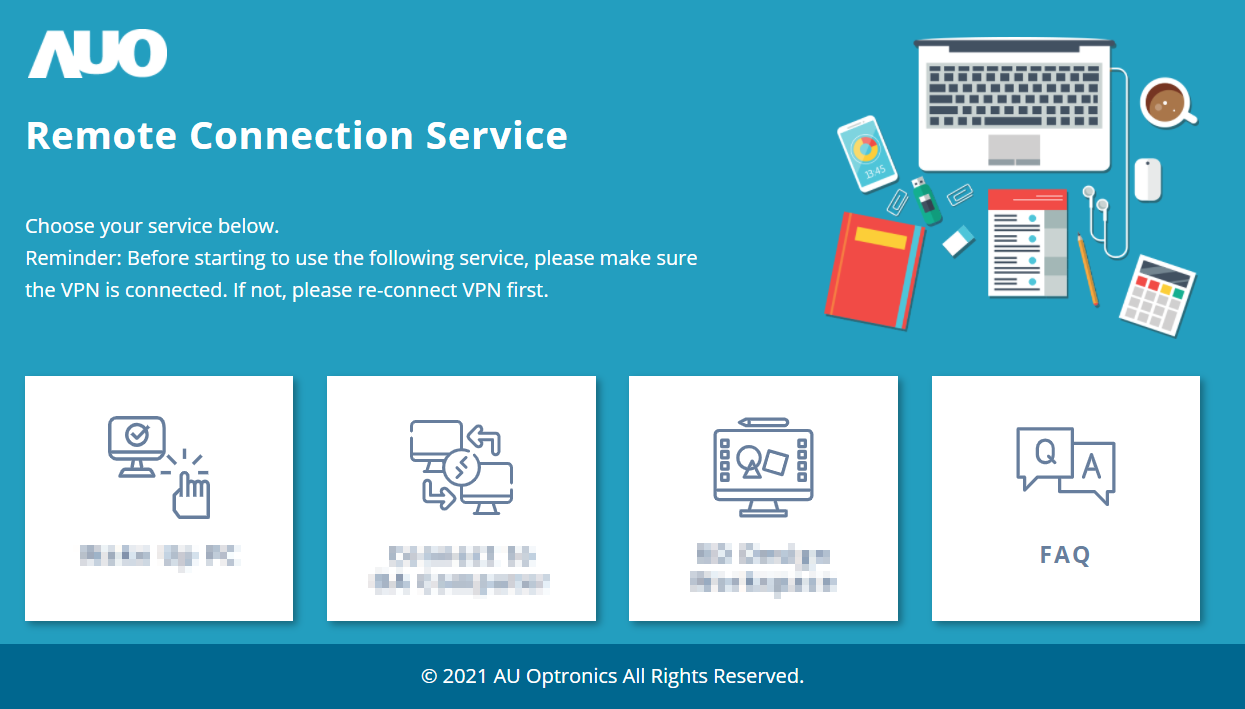
Step 2. After check successes to connect VPN, open https://myrcs.auo.com to enter RCS main page.
; ; AMSC users open https://myrcs.auomsc.com -> Select services. (e.g. wake up OA PC, connect to OA computer, etc.)
* It not support IE bowser, please use chrome or edge to browse.*
Tips:
1. Currently, it is not available to use RCS for remote connection below windows 10.
2. Please refer to the FAQ to install the Microsoft Authenticator app (Android users must download the Intune Company Portal separately) and register/verify for MFA authentication.
Step 1. Please connect to RCS VPN:
1.1. Download and install connection VPN program (GlobalProtect). Download
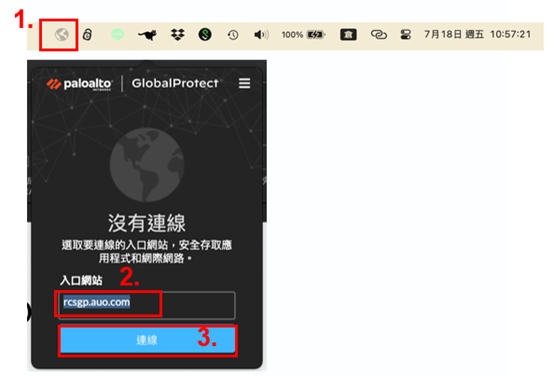
1.2. Open the GlobalProtect connection program in the toolbar -> enter "rcsgp.auo.com" in the portal -> connect
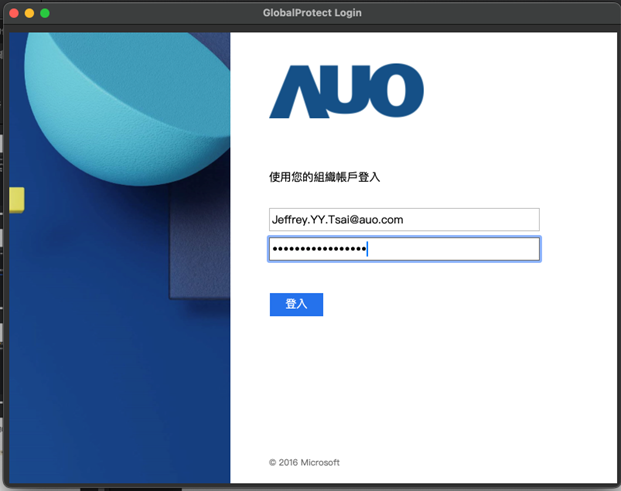
1.3. Enter email and NT password -> Perform MFA authentication -> Connected。
Step 2. After check successes to connect VPN, open https://myrcs.auo.com to enter RCS main page. -> Select services. (e.g. wake up OA PC, connect to OA computer, etc.)*
*It not support IE bowser, please use chrome or edge to browse.*